Tutorials / Output
Active buzzer
A beeper with its own fixed tone: HIGH sounds it, LOW silences it — and it really sounds in your browser.
- LM35
- Active buzzer
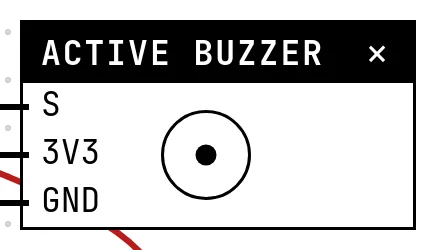
What it is
An active buzzer has an oscillator inside: give it power and it beeps at one fixed pitch. That is the difference from a passive buzzer, which is just a speaker and needs the code to generate the tone with tone(). The active one is the simpler part — one digitalWrite and it sounds.
In the simulator
The block draws sound waves while its GPIO is HIGH, and the browser plays a square wave at the frequency chosen in Settings (100 to 8000 Hz, 2 kHz by default). Browsers only allow sound after you interact with the page, so the buzzer is silent until your first click on Build and run.
Pins
| Pin | What it is |
|---|---|
| S | signal — to a GPIO; HIGH sounds the buzzer |
| 3V3 | power — to a 3V3 symbol |
| GND | ground — to a GND symbol |
Wiring
The circuit below is the example Thermometer with alarm — LM35 + buzzer from the lab — open it with Project → Open example… and it comes ready to run.
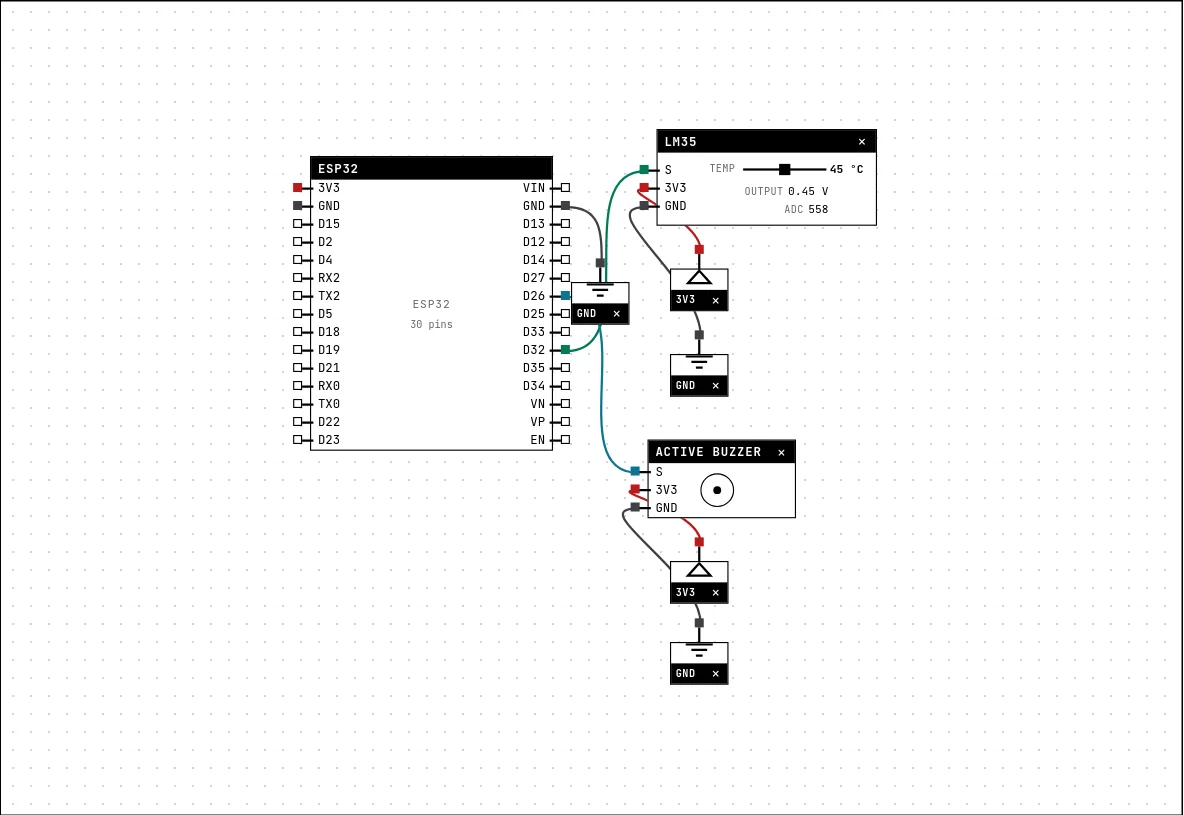
| Active buzzer pin | Goes to |
|---|---|
| S | D26 on the board (GPIO 26) |
| 3V3 | a 3V3 symbol |
| GND | a GND symbol |
Settings
Double-click the block's title bar to open its card, then the Settings tab. Changes apply to the running simulation right away.

| Setting | Accepts | Default | Notes |
|---|---|---|---|
| Tone frequency | 100 to 8000 Hz | 2000 Hz | The ACTIVE buzzer has its own tone: the GPIO only turns it on and off. This is that tone. |
Code
#include <Arduino.h>

const int LM35 = 32;      // 10 mV per degree Celsius
const int BUZZER = 26;
const float LIMITE_C = 30.0;

void setup() {
  Serial.begin(115200);
  pinMode(BUZZER, OUTPUT);
}

void loop() {
  // 12-bit ADC: 0..4095 = 0..3.3 V -> temp = voltage * 100
  float temp = analogRead(LM35) * 330.0 / 4095;
  bool alarme = temp > LIMITE_C;
  digitalWrite(BUZZER, alarme ? HIGH : LOW);
  Serial.printf("temp=%.1f C %s\n", temp, alarme ? "ALARM!" : "ok");
  delay(300);
}
The LM35 sensor gives a voltage proportional to the temperature (10 mV per °C); the sketch converts the ADC reading and, above 30 °C, sets the buzzer pin HIGH. Below the threshold it goes LOW.
Run it
Press Build and run. The first build of a project takes a while; after that, only what changed is rebuilt.
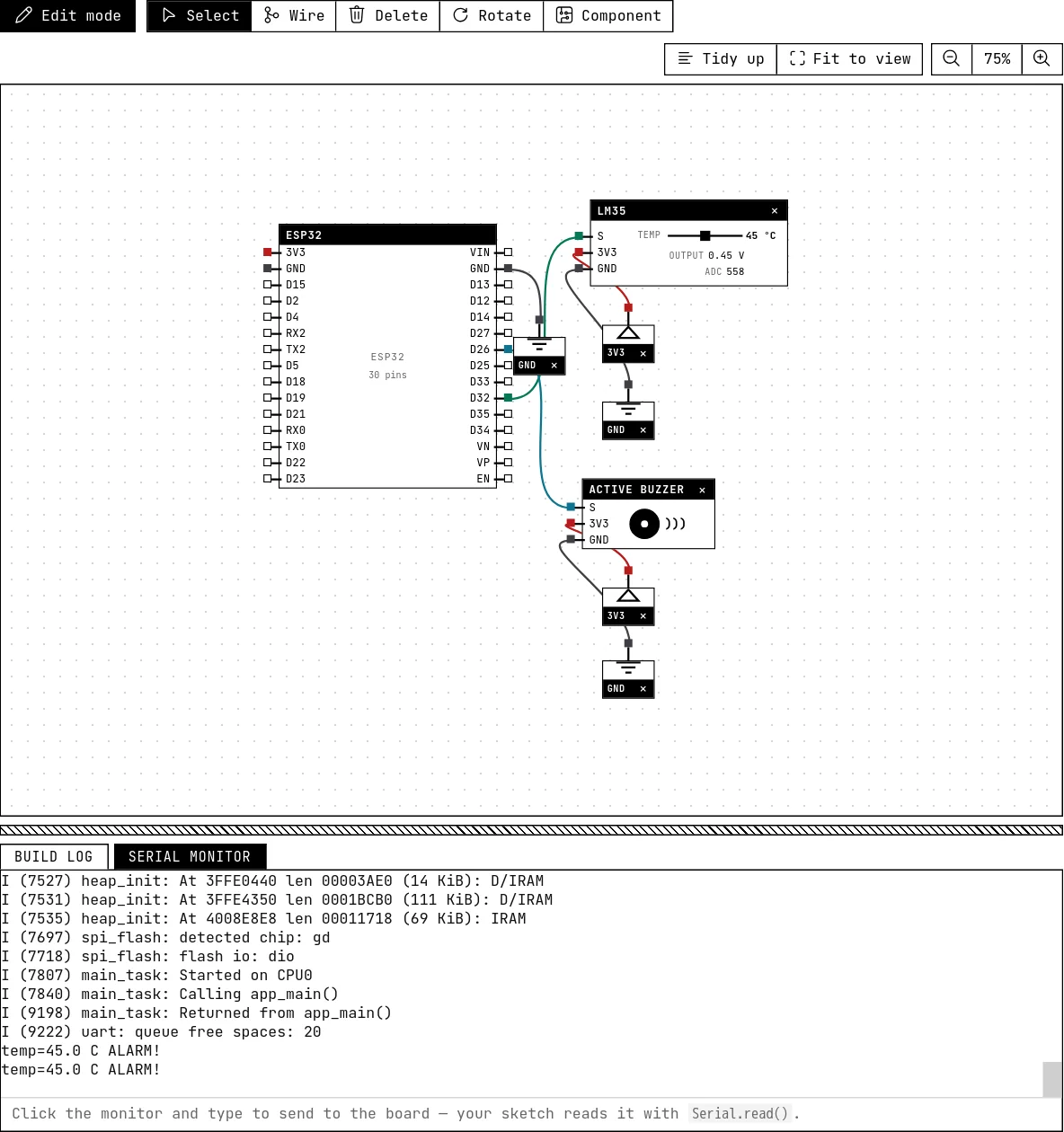
Drag the LM35's temperature slider past 30 °C: the buzzer block shows the waves, you hear the tone, and the serial monitor prints “ALARM!”. Slide it back and it stops.
How the simulation models it
- The buzzer follows the level of its GPIO, like an LED. The tone is a property of the part (Settings), not of the signal.
tone()and other PWM signals are not decoded: the block would just follow the fast on/off. For a musical buzzer, this is the wrong part.- The sound is quiet by design (a beep, not a concert) and stops when the simulation stops or the block is deleted.
Try this
- Beep in short pulses instead of continuously: 100 ms on, 400 ms off, while the alarm is active.
- Add a button that silences the alarm for 10 seconds — the “acknowledge” of a real panel.
See also
- LM35 temperature sensor — Ten millivolts per degree, straight from the sensor: read the voltage, multiply by 100.
- LED — The first output of every project: a GPIO set HIGH lights it, LOW turns it off.